
 Font cho iPhone & iPad
CFonts — Cool Fonts for iPhone & iPad
Cài thêm font đẹp cho iPhone và iPad, rồi dùng ngay trong Notes, Pages, Keynote, Word và mọi ứng dụng cho phép chọn font. Xem trước, chọn font và cài đặt chỉ trong vài bước.
- iPhone
- iPad
- iOS 15 trở lên
CFonts làm được gì?
iPhone và iPad đi kèm một số font hệ thống, nhưng khi bạn muốn làm thiệp, ghi chú, bài thuyết trình hay tài liệu có chất riêng, lựa chọn đó thường không đủ. CFonts mang đến hơn 800 font được tuyển chọn trong 6 bộ: viết tay, serif, display, design và monospace, kèm các bộ hỗ trợ chữ Ả Rập. Font được cài dưới dạng hồ sơ cấu hình (configuration profile) của Apple, nên sau khi cài, chúng xuất hiện trong danh sách font của các ứng dụng hỗ trợ chọn font, giống như font có sẵn.
6 bộ font cho mọi nhu cầu
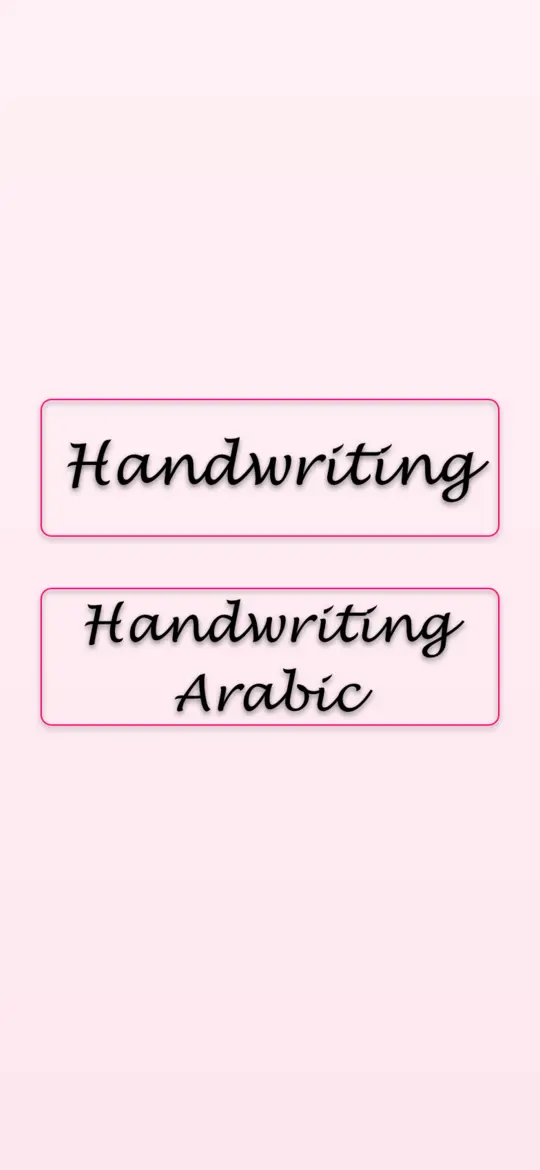
Handwriting (miễn phí)
Chữ viết tay mềm mại cho thiệp mời, nhật ký, ghi chú học tập và lời nhắn gia đình.
Handwriting Arabic (miễn phí)
Phong cách viết tay dành cho chữ Ả Rập, đẹp tự nhiên và dễ đọc.
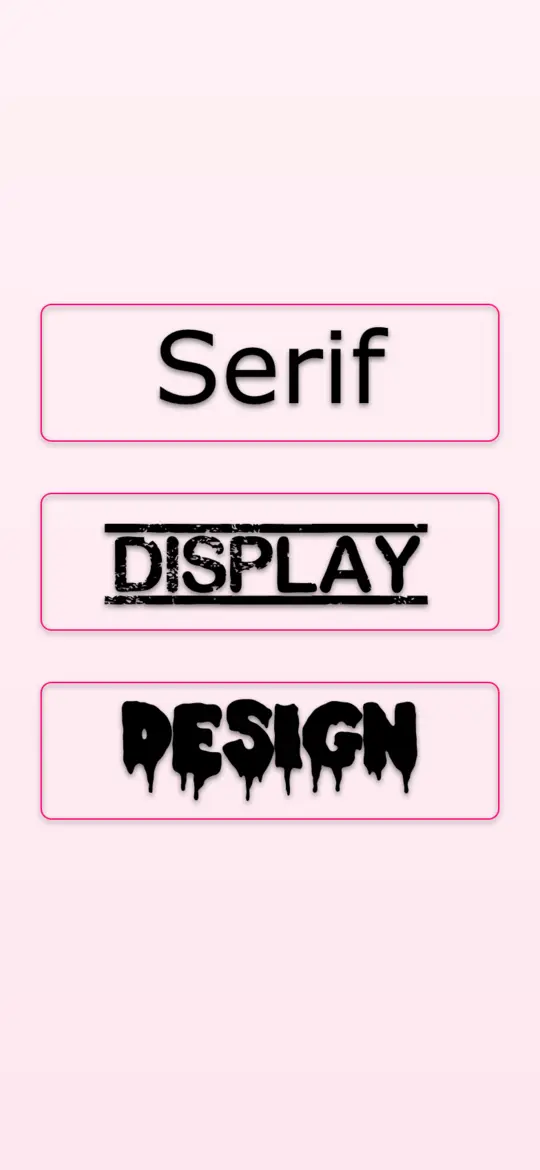
Serif (PRO)
Font có chân trang nhã cho văn bản dài, báo cáo, CV và tài liệu in ấn.
Display & Design (PRO)
Font tiêu đề nổi bật cho poster, slide, ảnh bìa và bài đăng mạng xã hội.
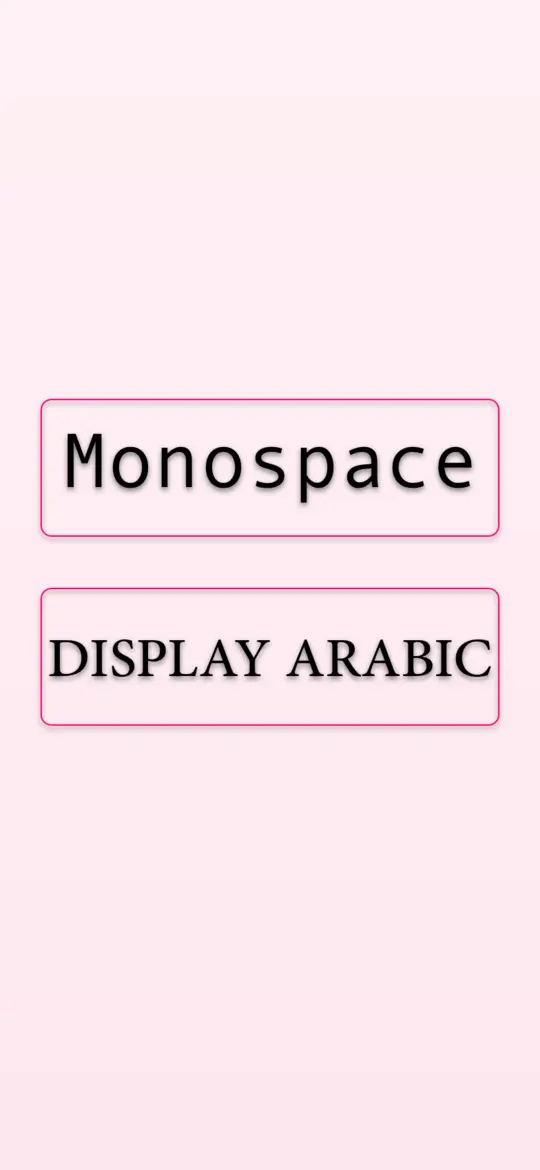
Monospace (PRO)
Font đơn cách cho lập trình viên, bảng số liệu và phong cách máy đánh chữ.
Display Arabic (PRO)
Font tiêu đề cho chữ Ả Rập, dùng cho thiết kế và trình chiếu.
Xem trước trước khi cài
Cài font trên iPhone, iPad trong 5 bước
- Chọn bộ font và xem trước bằng câu mẫu, bảng chữ cái hoặc chữ số. Kéo thanh cỡ chữ từ 8 đến 80 pt để xem rõ chi tiết.
- Chọn font muốn cài: từng font một, hoặc chọn tất cả trong bộ.
- Bấm Cài đặt. CFonts tạo hồ sơ cấu hình chứa các font bạn đã chọn và mở hướng dẫn ngay trong ứng dụng.
- Vào Cài đặt › Đã tải về hồ sơ, bấm Cài đặt và xác nhận bằng mật mã máy. Đây là bước bắt buộc của Apple để thêm font hệ thống.
- Mở Notes, Pages, Keynote hoặc Word và chọn font mới trong danh sách font.
Muốn gỡ font? Vào Cài đặt › Cài đặt chung › Quản lý VPN & thiết bị, chọn hồ sơ của CFonts và bấm Xóa hồ sơ.
Gợi ý dùng font cho từng việc
- Thiệp sinh nhật, lời chúc: font viết tay cho tiêu đề, font serif cho nội dung để dễ đọc.
- Slide thuyết trình: một font display cho tiêu đề và một font không chân hoặc serif cho chữ nhỏ; tránh dùng quá hai font trên một slide.
- Ghi chú học tập: font viết tay rõ nét giúp ghi chú trông gần gũi mà vẫn dễ đọc lại.
- Code và bảng số: font monospace giúp các cột thẳng hàng.
- Kiểm tra cỡ chữ: dùng thanh xem trước 8–80 pt để chắc chắn font vẫn đọc được ở cỡ nhỏ trước khi cài.
Miễn phí và gói PRO
CFonts miễn phí với 2 bộ Handwriting. Gói PRO đăng ký tự gia hạn theo tuần, tháng hoặc năm qua App Store mở khóa toàn bộ 6 bộ font và bỏ quảng cáo. Bạn có thể hủy gia hạn bất cứ lúc nào trong Cài đặt › Apple ID › Đăng ký.
Quyền riêng tư và an toàn
Hồ sơ cấu hình của CFonts chỉ chứa font, không chứa VPN, chứng chỉ hay quyền quản lý thiết bị. Bạn luôn xem được nội dung hồ sơ trước khi cài và gỡ bỏ bất cứ lúc nào. Chi tiết tại Chính sách quyền riêng tư và Điều khoản sử dụng.
FAQ
Font có dùng được trong Instagram, Messenger hay tin nhắn không?
Font cài qua hồ sơ chỉ hiện trong các ứng dụng cho phép chọn font như Notes, Pages, Keynote, Word. Các ứng dụng mạng xã hội và tin nhắn dùng font riêng nên không đổi được.
Có đổi được font hệ thống của iPhone không?
Không. iOS không cho phép thay font giao diện hệ thống; CFonts thêm font để bạn chọn trong các ứng dụng hỗ trợ.
Vì sao phải cài hồ sơ cấu hình?
Đây là cách Apple cho phép thêm font dùng chung cho nhiều ứng dụng. Hồ sơ của CFonts chỉ chứa dữ liệu font.
Font có dùng được trên cả iPhone và iPad không?
Có, nhưng bạn cần cài hồ sơ trên từng thiết bị.
Cần trợ giúp khi cài font?
Gửi email cho chúng tôi kèm ảnh chụp màn hình, chúng tôi sẽ hướng dẫn từng bước.
Fonts for iPhone & iPad
CFonts — Cool Fonts for iPhone & iPad
Install beautiful fonts on your iPhone and iPad, then use them right away in Notes, Pages, Keynote, Word and any app that lets you choose a font. Preview, pick and install in just a few steps.
- iPhone
- iPad
- iOS 15+
What does CFonts do?
iPhone and iPad come with a handful of system fonts, but when you want a card, a note, a presentation or a document with real personality, that choice is often not enough. CFonts brings more than 800 curated fonts in 6 packs: handwriting, serif, display, design and monospace, including packs for Arabic script. Fonts are installed as an Apple configuration profile, so once installed they appear in the font list of apps that support font selection, just like built-in fonts.
6 font packs for every need
Handwriting (free)
Soft handwritten styles for invitations, journals, study notes and family messages.
Handwriting Arabic (free)
Handwritten styles for Arabic script, natural and easy to read.
Serif (PRO)
Elegant serif fonts for long text, reports, CVs and print.
Display & Design (PRO)
Eye-catching headline fonts for posters, slides, covers and social posts.
Monospace (PRO)
Fixed-width fonts for developers, data tables and a typewriter look.
Display Arabic (PRO)
Headline fonts for Arabic script, for design and presentations.
Preview before you install
Install fonts on iPhone or iPad in 5 steps
- Pick a pack and preview it as a sample sentence, alphabet or numbers. Drag the size slider from 8 to 80 pt to see the details.
- Select the fonts you want: one at a time, or select all in the pack.
- Tap Install. CFonts builds a configuration profile with your selected fonts and opens step-by-step instructions in the app.
- Go to Settings › Profile Downloaded, tap Install and confirm with your passcode. Apple requires this step to add system-wide fonts.
- Open Notes, Pages, Keynote or Word and choose your new font from the font list.
Want to remove fonts? Go to Settings › General › VPN & Device Management, choose the CFonts profile and tap Remove Profile.
Choosing the right font for the job
- Birthday cards and greetings: a handwriting font for the title and a serif font for the body so it stays easy to read.
- Presentation slides: one display font for headings and one sans-serif or serif for small text; avoid more than two fonts per slide.
- Study notes: a clear handwriting font feels personal yet stays readable.
- Code and number tables: a monospace font keeps columns aligned.
- Check small sizes: use the 8–80 pt preview to make sure a font is still readable small before installing it.
Free and PRO
CFonts is free with the 2 Handwriting packs. An auto-renewing PRO subscription (weekly, monthly or yearly) through the App Store unlocks all 6 packs and removes ads. You can cancel any time in Settings › Apple ID › Subscriptions.
Privacy and safety
The CFonts configuration profile contains fonts only: no VPN, no certificates and no device management. You can always review the profile before installing and remove it at any time. Details are in the Privacy Policy and Terms of Use.
Frequently asked questions
Can I use the fonts in Instagram, Messenger or text messages?
Profile-installed fonts only appear in apps that let you choose fonts, such as Notes, Pages, Keynote and Word. Social and messaging apps use their own fonts, so they cannot be changed.
Can I change the iPhone system font?
No. iOS does not allow replacing the system interface font; CFonts adds fonts you can choose in supported apps.
Why do I need to install a configuration profile?
It is Apple's supported way to add fonts shared across apps. The CFonts profile contains font data only.
Do fonts work on both iPhone and iPad?
Yes, but you need to install the profile on each device.
Need help installing fonts?
Email us with a screenshot and we will walk you through it.